
- Training
- Service
- Promotion
- Schedule
- Testing Center
- News
- Contact
3/18/2020


Bottom Line: Learn a quick shortcut to move or copy sheets between workbooks.
Skill Level: Beginner
If you've ever moved a sheet from one workbook to another, you may have used the right-click menu to select Move or Copy. But you can actually drag and drop the sheet directly from one open workbook to another.
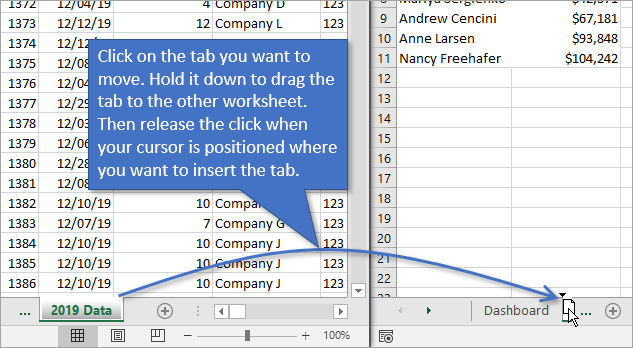
This process moves the sheet completely and doesn't leave a copy behind in the “from” workbook. However, if you want to leave the sheet there and make a copy into a new sheet, the process is just as easy.
To create a copy, the process is identical to the one above, except before releasing the mouse button in the new sheet, you are going to hold down the Ctrl key.
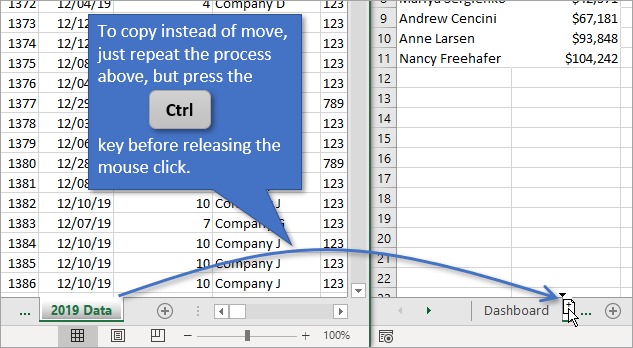
This leaves a duplicate sheet in both workbooks.
You will see the plus symbol (+) in the mouse cursor icon when you copy the sheet.
These methods work for moving or copying multiple sheets at once. Simply select the sheets you want to move or copy before dragging them over. You can select multiple sheets by holding down the Shift or Ctrl key while clicking on the sheets you want to work with.
Unfortunately, you cannot move or copy multiple sheets if one of the selected sheets contains an Excel Table. This is a limitation of Excel. Sheets with Tables must be moved one at a time.
Source: Excel Campus

12/11/2025


